
My Personal Experience making this website with Hugo #
I want to chronicle my journey in making this simple webnsite using Hugo.
What is Hugo? #
According to Hugo’s website “Hugo is a static site generator written in Go, optimized for speed and designed for flexibility. With its advanced templating system and fast asset pipelines, Hugo renders a complete site in seconds, often less.
Due to its flexible framework, multilingual support, and powerful taxonomy system, Hugo is widely used to create:
- Corporate, government, nonprofit, education, news, event, and project sites
- Documentation sites
- Image portfolios
- Landing pages
- Business, professional, and personal blogs
- Resumes and CVs
- Use Hugo’s embedded web server during development to instantly see changes to content,structure, behavior, and presentation. Then deploy the site to your host, or push changes to your Git provider for automated builds and deployment.
And with Hugo Modules, you can share content, assets, data, translations, themes, templates, and configuration with other projects via public or private Git repositories.”
Why did I Pick Hugo? #
I picked Hugo due to the positve press i’ve seen on it, but mostly due to this video by fireship on youtube.
Starting out with Hugo #
Installation #
I followed the installlation instructions listed on their website for windows, and i used the chocolatey package manager, due to me already having it installed. As prequsites, i had to Install a C compiler, either GCC or Clang and both install Go(and Git, but i already had git so…) and create a github depositry for the website.
First Steps #
I then ran the code
hugo version
to confirm that i had the right version of hugo installed.
Though there waas a problem that I didn’t realise at the time, as it turns out the version of Hugo I downloaded was not offically supported by my theme yet so I ended up having to mess around in powwershell later to downgrade it.
Then i ran the following code to start it off
hugo new site quickstart
cd quickstart
git init
git submodule add https://github.com/nunocoracao/blowfish themes/blowfish
echo "theme = 'blowfish'" >> hugo.toml
hugo server
I was then able to view the basic site locally in my browser window after that.
Explanation of Commands #
Create the directory structure for your project in the quickstart directory.
hugo new site quickstart
Change the current directory to the root of your project.
cd quickstart
Initialize an empty Git repository in the current directory.
git init
Clone the Blowfish theme into the themes directory, adding it to your project as a Git submodule.
git submodule add https://github.com/nunocoracao/blowfish themes/blowfish
Append a line to the site configuration file, indicating the current theme.
echo "theme = 'blowfish'" >> hugo.toml
Start Hugo’s development server to view the site.
hugo server
Press Ctrl + C to stop Hugo’s development server.
My First Post #
As you can see already my first post was the gallery page
To make a new post, I typed in the following command into the terminal
hugo new content content/posts/gallery-post.md
It created a semi-blank markdown file only containing
+++
title = 'My First Post'
date = 2024-01-14T07:07:07+01:00
draft = true
+++
Then i added a little text just as a test, then i configured the site by editing the hugo.toml file located at the root of the directory.
Making it look like this:
baseURL = 'https://example.org/'
languageCode = 'en-us'
title = 'Confused'
theme = 'blowfish'
Then i ran the site using the command
hugo server
Blowfish Theme #
What is the Blowfish Theme? #
According to the developer, it is “A powerful, lightweight theme for Hugo.”
Why did I pick Blowfish? #
When i went to search for themes at the themes section of Hugos website here.
Blowfish was on the fourth row and out of all the other themes on the page it was the one that caught my eye the most.
To be specific when I refer to the Blowfish theme both previously and from hereonout, I am referring to this:
Personal Website & Blog Theme for Hugo
After reading a brief introduction to theme I went about looking throught the docs and started my configuring the website to suit my needs.
Configuring the Theme #
This is suprisingly where I spent most of my time, and also where I can trace back most of my previous grievances with the Blowfish Theme.
What do I mean? Well I’m glad you asked.
When reading through the docs I came to the conclusion that I was to edit the config files within the Blowfish/themes folder, and the more experienced among you can see where the problem lies already. For the rest of you let me explain it slowly.
To use the Bloefish thme i imported it as a submodule, and because of that if I tried to push any changes to the blowfish folder, I would be met with an error, because I obviously do not have permission to push updates to the main hugo depository. What I was instead meant to do was to create a seperate config file folder in the root of my project and to copy and paste the config files from the blowfish folder into it, then and Only then could I start editing them. I am ashamed to admit that this took me several hours to figure out.
Now you may ask yourself, but wouldn’t something as crucial as that be put in the docs? and you would be right dear reader, it was a folly on my part.
Anyways I finally figured out how to do by reading this blog post by Ken Harris, namely “Here’s How To Make A Hugo Blowfish Website”.
This really opened my eyes to the problem that I was having and allowed me to correct my mistakes and filay build my website properly.
For the rest of the instructions on how i configured the theme, I would rahter not bore you with the details, but instead i would point you towards the docs again to have a look through yourself.
Issues with Hugo #
Here I will chronicle some common issues that I ran into when setting up this website.
- Handling of Images #
In Hugo, you write the website pages in markdown, with the javazcript in layouts. Due to this when you build the website the final file structure looks a bit different than how you would see it in your code editor., here is an example image:
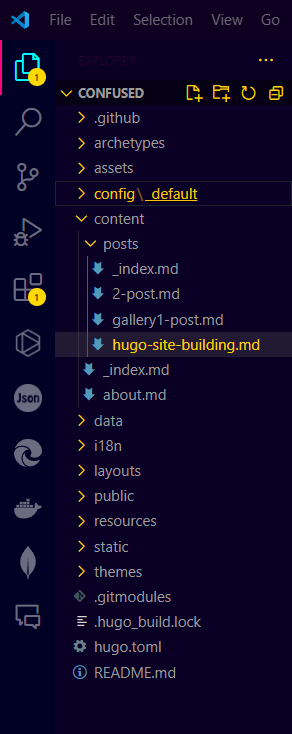
In this image you can see how the files and folders are arranged.
Within the Public folder you will be able to see how the built website looks.
Here is an example:
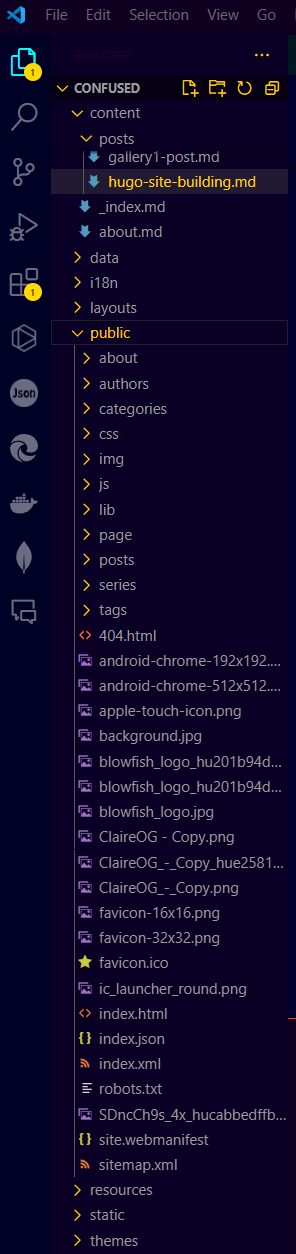
hugo or hugo server.
Why did I mention all of this, simple really, how to correctly refrence images in the markdown is not very clear, because most are used to how html normally works.
For example if i wanted to call an image you would normally assume that it would be
<img src="/static/img/bob.png" alt="Image of a bobr"></img>
Whereas you would be wrong, because as priviously mentioned, the built website would have a different file structure, especiallly with how the static folder works so the correct way to do it would be this
<img src="/img/bob.png" alt="Image of a bobr"></img>
